Using Calculations in Microsoft Word
First, I'd like to say that I don't recommend that you do this if:
- You don't have patience
- You've already created your tables
- You aren't willing to use tables
Yes, it can be done without the three items above...I just don't recommend it.
Easy Method Mini-WalkThrough
Hit View Toolbars and choose the Forms toolbar.
Open a new, blank document in Word and insert a 2-column, 4-row table. Note that Word, like Excel assigns the cells, as shown (no, your table won't have numbers in it).

In B1 through B3, insert one text form field into each of the cells.

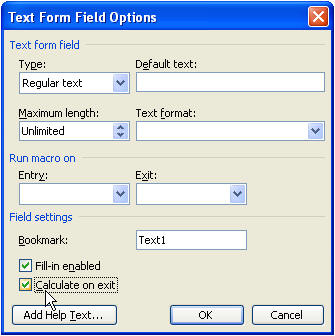
Double-click each field, and check the Calculate on Exit checkbox. Note that each one's Bookmark name increases by one, as Text1, Text2...
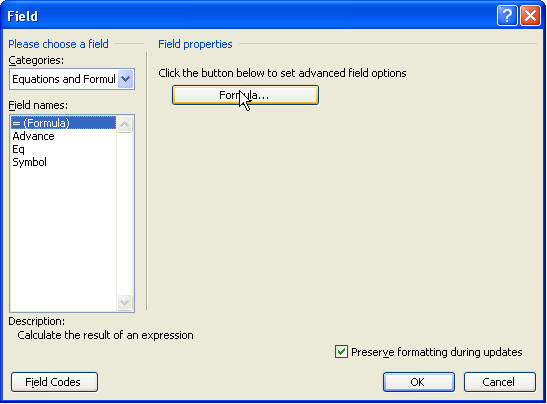
In B4, hit Insert Field, choose Equations and Formulas from the Categories drop-down, then choose Formula from the Fields list.
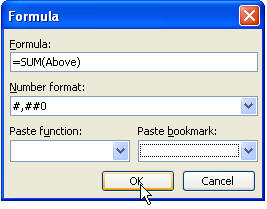
Hit the Formula button, and write your formula. You could type =SUM(A1:A3), but I want to make you aware of the quicker way, which is =SUM(Above), which will sum all the values in the table above the formula. Do not expect to be able to use this method in multiple tables. Hit OK.
Protect the form using the padlock icon on the Forms toolbar. Enter some values in B1, B2, and B3, and as you enter each one, the value in B4 will increase (because we checked Calculate on Exit-if we hadn't, we wouldn't see it update automatically like that-we'd have to use some other method to update the field.

Calculating With Bookmarks
You can use the same methods above. Suppose you have created a proposal, and used dollar values throughout your document. As long as those values are assigned to bookmarks, you can use a formula as simple as:
=(Text1+Text2+Text3)
Troubles
-
When you use bookmarks, users often accidentally delete them.
-
When you are calculating in Word tables, you should really try to start with freshly created tables on which you haven't been merging and splitting cells. This causes the "cell references" to break, and it's very difficult to learn what the cell references are once this has been done.