Understanding Section Breaks in Microsoft Word
Egads, these are confusing! I couldn't possibly tell you everything here, but I'll try to give enough information to take away the mystery.
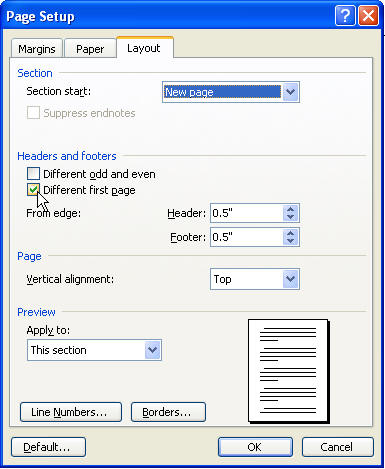
Section breaks are intricately tied in with the File Page setup options of Different First Page and Different Odd/Even Headers and Footers.
- Use the Different First Page option if you want a different heading on your first page than on the rest of your document. But if you need more than just a different heading on your first page, you need section breaks.
- If you use the Different First Page option in your document, and then insert a section break, the second section is automatically created with the Different First Page too.
- The Link to Previous (a/k/a Same as Previous) button on the Header/Footer toolbar links (or unlinks) your current header or footer to (or from) the previous header or footer of the same type. This is so important to know. Suppose you have the Different First Page option in your first section. You insert a section break (next page type). Now, the Header/Footer toolbar indicates it's linked to the previous section, but the header doesn't show up! Well...that's because it's linked to the First Page header of the previous section and not the (main) Header of the previous section. If you want it to link to the (main) Header of the previous section, then you must uncheck the Different First Page option for this section only.
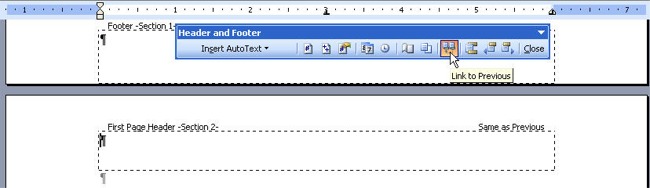
Notice how the header and footer type appear in the screen captures. Pay attention, and it'll all begin to make sense. If you choose to Link to Previous while in the header shown below (First Page Header Section 2), you will be "copying" the First Page Header from Section 1.
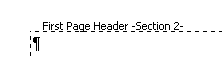
Therein lies the mystery. You hit Link to Previous button and get unexpected results. So you hit the Show Previous button, and you don't see the same thing. The Show Previous and Show Next buttons go to the next section regardless of the section type, while the Link to Previous (Same as Previous) button is referring to the previous section of the same type. Hence, we're all confused!

Hopefully, knowing this information clears up some issues for you.
Change a Header or Footer
While you can use Different First Page, it won't always work for your needs. You may have multiple chapters, for instance. So, it may be easiest to follow these steps. Once you learn these steps, you'll likely teach yourself methods that are a little quicker.
- Insert a section break (next page) at the bottom of each page prior to the page where you want to change the header or footer.
- View the header/footer and, using the Show Next button, go to each header or footer and turn off the Same as Previous or Link to Previous button. This makes your headers/footers stop changing each other.
- Now change your headers and footers as desired.
Deleting a Section Break
Deleting a section break, for the same reasons as mentioned above, will often throw off all page formatting. For instance, if I delete the 3rd section break, my 3rd section now becomes formatted like my 4th section, which may be undesirable. To avoid this, you must first go to next section and format it exactly like the previous section in regard to Page Setup and Page Layout options. Then, in my for instance, when I delete the 3rd section break, it simply takes on the formatting of the 4th section, which has been formatted the same.