Tests and Quizzes in Microsoft Word
I've often seen it asked how it's possible to create a layout for questions and answers. The solution is easy. Just create one style each for questions and answers and save it as a template.
Before you begin, reset all your number settings, as described here. That will ensure that you get the same behavior we expect.
- Type =rand() and hit Enter to get some sample text.
- Select the first paragraph of text and hit Format Styles and Formatting.
- Click the New Style button, and name it Question.
- Select the second and third paragraphs and hit the New Style button, and name it Answer.
- Now, select the first paragraph again and, using Format Bullets and Numbering, choose the second option, as shown.
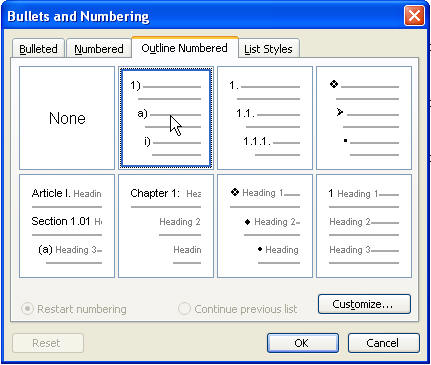
- Hit the Customize... button.
- Set the formatting the way you like. (Why do they put parentheses on here by default? Who uses them the most? Not me! I'm always changing them to periods.)
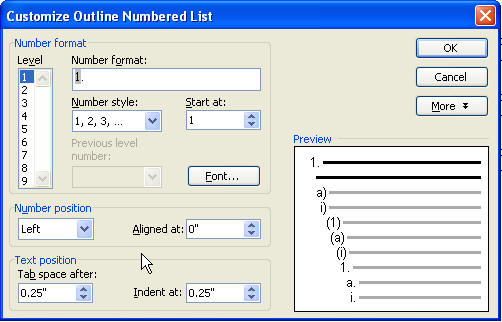
In the graphic above, I've changed the parenthesis in the Number format box to a period.
-
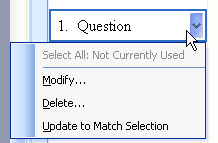
Hit OK. Right-click the Question style in the task pane, and choose Update to Match Selection.
-
Select your second paragraph, and hit Format Bullets and Numbering, and choose the same outline numbered option. This time, we click on Level 2 at the left (see below).

I have again changed the parenthesis to a period, as shown in the graphic above.
-
Hit OK. Right-click the Answer style in the task pane, and choose Update to Match Selection.
-
Save your file as a template. Any time you want to, you can copy the styles to any other file using the Organizer. Click here to learn how.
Tip: When you use Outline numbering, you can type all the text you want. If you first hit tab before you begin typing a new paragraph, it'll automatically use the Level 2 outline numbered style-in this case, Answer. So, in effect, you don't even have to apply the styles to any but the first paragraph you type. If you wanted, you could just type all your questions and answers (do NOT apply any formatting!), then apply the Question style to all of them, then use the Increase Indent button to turn the answers into the Answer style.
Now, what do you do when the boss says "Oh...I wanted all the questions in bold, blue text." Change the style!
While I wrote this article, I created an actual file. You can download the sample here.