Reset Toolbars in Microsoft Word
Though not absolutely necessary, you may find yourself using features that you or the previous owner of your PC did not use, and may have removed from toolbars and menus. I remember the first time I learned how to get rid of toolbar buttons, I got rid of all those that I did not understand. Bad move!
Let’s reset all your toolbars and menus to be sure you’re not missing any.
Thanks to CyberTaz in the newsgroups for pointing out that I didn't provide all the methods for getting to the Customize dialog box! Here they are:
- From the menu, click Tools Customize
- From the menu, click View Toolbars Customize
- Double-click the gray area to the right of one of the toolbars (it doesn't work to the right of the menu bar). (Thanks to my good friend Tony Jollans for this addition.)
- Right-click any menu and choose Customize (all the way at the bottom)

At this point, I strongly recommend making sure you have at least checked the following 4 toolbars:
|
Standard |
Formatting |
|
Drawing |
Menu Bar |
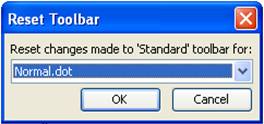
Without unchecking them, select each of the checked toolbars, and then hit the Reset button. You’ll be asked to confirm the reset for each one, as shown below.
If performing these steps didn't work, then you need to perform Word Troubleshooting.