Print Some Mail Merge Documents in Microsoft Word
Word
It's easy to print all the documents from a mail merge, but to print only some of them, you need to know a few things.
- When mail merges are processed, a new section is created for each record; except for labels, which creates a new section for each page of labels.
- To print only a section, you just precede it with an S in the Pages box of the Print dialog, as shown.
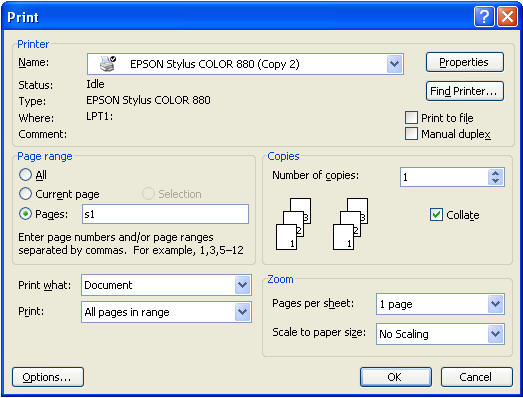
- To print many sections, you can type S1-S25 to print sections 1 through 25.
- To print some sections, you can type S1,S2,S5,S10 (for example).
- To print a page of labels, just find out which section it is and print the section. To find out the section, look at the bottom of Word, in the status bar. Or you can just use File Print, Current page.
