Keep Captions With Pictures in Microsoft Word
Everybody does things differently. Here's how I keep my captions with my pictures.
In Line With Text
First, I always place my pictures as Inline with Text. I realize this might be impossible for some layouts, but I do it as much as I possibly can. To accomplish this, right-click the picture and choose Format Picture. On the Layout tab, choose Inline with Text.
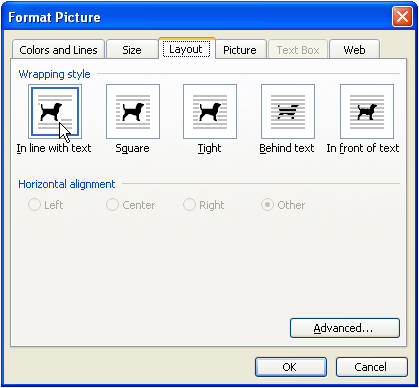
Once that is done, you can apply a style to the picture.
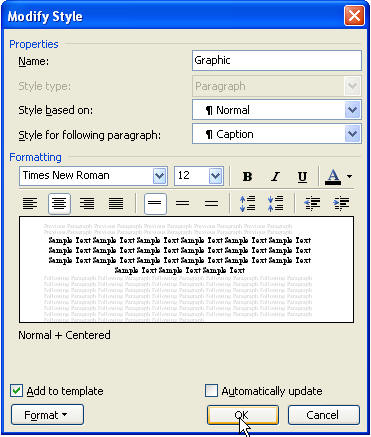
Create a Style
Almost everyone who has purchased a Word template from me has a template with a style called Graphic. I format it using Keep with Next under Format Paragraph, Line and Page Breaks tab. I also choose Caption as the Style for following paragraph, but I rarely need it because I usually insert a caption from the menu, which automatically applies the style Caption to the caption.
When You Can't Use In Line With Text
If you absolutely can't use In Line With Text on your picture, then you need to get out the old frame. I say old because frames were what we used before text boxes became much more popular. But a caption in a text box won't show up in an Table of Figures field.
You can insert a Frame using the button on the Forms toolbar (View Toolbars, Forms). Then copy your picture and caption into the frame.