Change Previous Author in Microsoft Word
Word
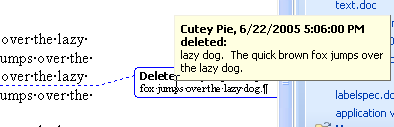
So you took the work home with you and did some Tracked Changes, and now you don't want to give your boss the file that has "Cutey Pie" as the author, huh?
Easy enough.
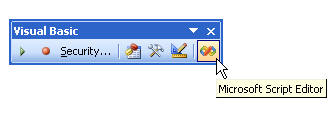
Open your document. Go to View Toolbars and display the Visual Basic toolbar. Hit the Microsoft Script Editor button at the far-right end of it.
Your document is open in Script Editor mode. Pretty ugly, huh? Hit Ctrl+H to bring up the Replace box. In writing this article, I've just found that Word does the same thing as HTML when there's a space and replaces it with %20. So if your name is Cutey Pie (like mine), then you'll have to search for Cutey or for Cutey%20Pie. Put the appropriate author name in the Replace with box and replace all. Save and close.
