Move an Object Along a Path in Microsoft PowerPoint
PowerPoint
You want a runner to move along a track? Simple.
First Insert the image. From the menu, choose Insert Picture From File, and select the file you want to insert.
Place the image on the page where you want to start the movement, and select the image, and hit Slide Show Custom Animation.
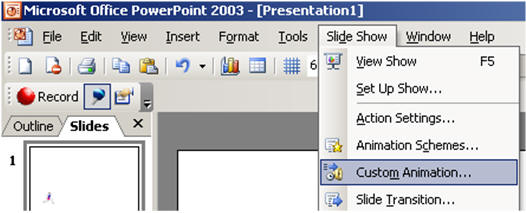
The Custom Animation task pane appears. Select Add Effect, then Motion Paths, then Draw Custom Path.
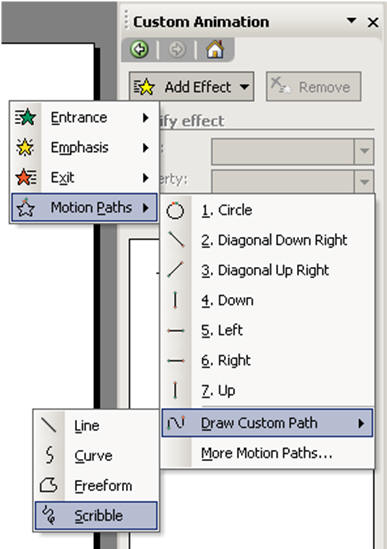
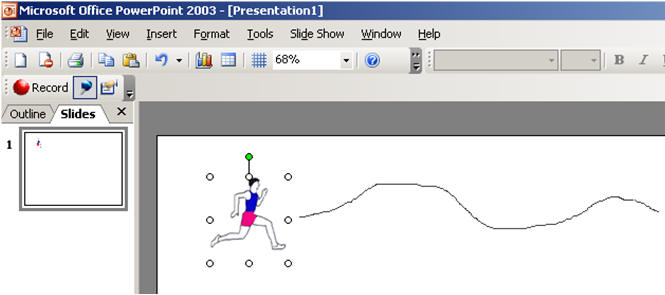
For our demonstration, we select Scribble, and draw the path on the slide.
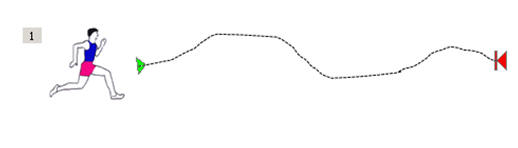
You can change attribute of the path by selecting and dragging the relevant control.
You can change the speed at which the object follows the path, by clicking the Speed dropdown.
