Symbols and Characters in Microsoft Office
It seems a lot of people can't find how to get certain symbols or characters into their documents, so I hope to offer every method here.
Insert Symbol
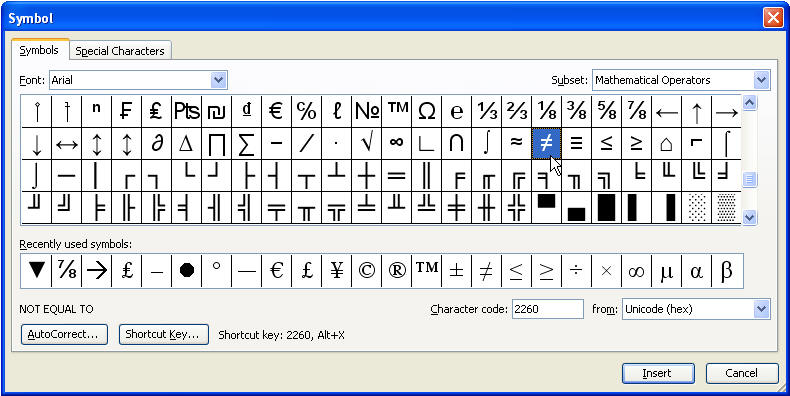
This is one of the easiest methods. If you use the symbol a lot, you may want to memorize the shortcut key for it, or create a shortcut key or AutoCorrect entry for it. This is Word's Symbol dialog.
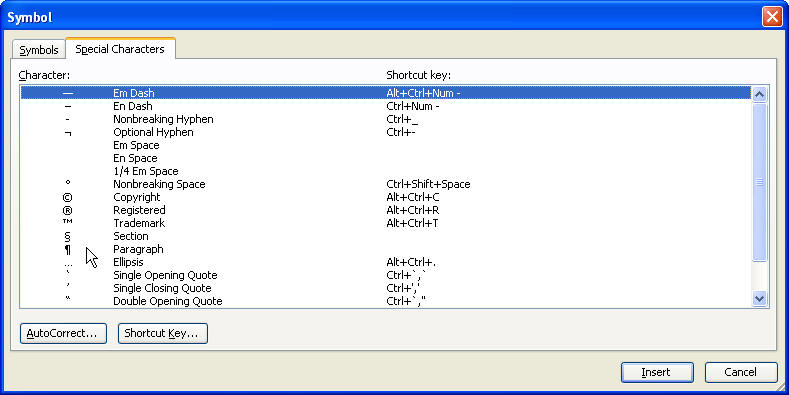
Word's Symbol dialog also has a Special Characters tab that you shouldn't miss if you use Word a lot. One of the most commonly looked for symbols here is the Paragraph return, also called a Pilcrow.
Special for Excel
Excel lovers can download a special Excel Insert Character dialog created by Jon Peltier, Microsoft Excel MVP and owner of PeltierTech. Thanks very much, John!
Character Map
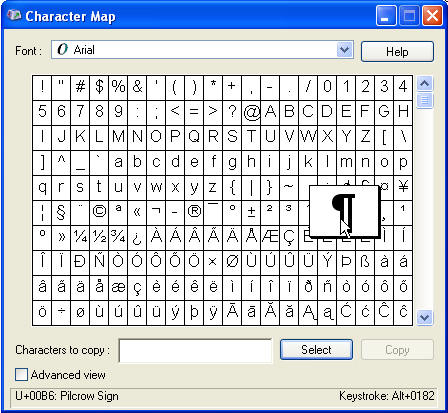
If you can't find your symbol or character using the Symbol dialog, try the Character Map, which comes with Windows. To use it, hit Start Run and type "charmap" (without the quotes) and hit Enter.
Shortcut Keys
Both the above methods may show keystrokes to use, such as the one above displays:
Keystroke: Alt+0182
To use this keystroke, hold your Alt key while typing the numbers on the number keypad. It won't work using the regular keypad. Once you type the last number, your symbol or character should appear.
Equation Editor
For even more symbols, usually of a scientific or mathematic nature, or for creating Arithmetic problems, use the Equation Editor. Don't expect to jump right in and become an expert. It takes a bit of time. My experience has been, too, that every time I try to edit the fonts, I mess it up even more. Try to live with them the way they are.
To access the Equation Editor, hit Insert Object, choose Microsoft Equation 3.0. This brings up the toolbar. You can create an equation, which looks a lot like a graphic in your document. To edit the equation later, just double-click it. To create another, you can copy the first one, and paste it, then double-click it to change it.
