Drawing Tools in Microsoft Office
Miscellaneous
Using the Drawing tools in Microsoft Office is easy. Making perfect drawings is not. Is it making you crazy?
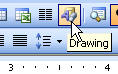
To use the Drawing tools, hit ViewToolbars and choose Drawing, or just hit the icon on your Standard toolbar.
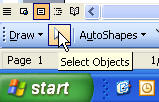
Sometimes, the only way to select a graphic is by using the Selector Tool on the Drawing Toolbar.
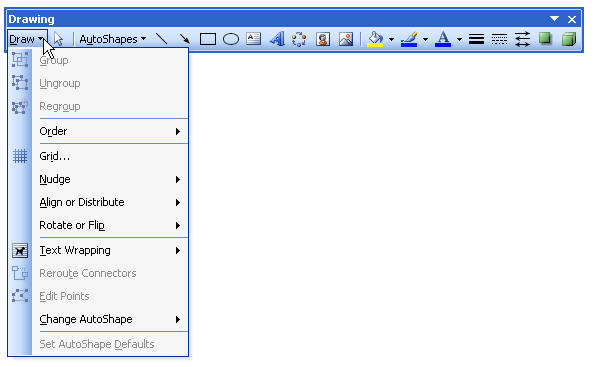
Here's the Drawing toolbar, in case you're not familiar with it. I've extended the Drawing menu so you can see the options available there, which are so important, and of which so many people are unaware.
Here's some tips about using Drawing tools.
- You can set the default of the objects by creating an item the way you like it and then right-click the object and choose Set AutoShape defaults.
- Items move incrementally, by about one point (1/10th of an inch) whenever you drag them around with your mouse. To place them perfectly with your mouse, hold the Alt key while you drag.
- Items move incrementally, by about one point (1/10th of an inch) whenever you move them around using your arrow keys. To get a more defined placement, hold your Ctrl key down while you use your arrow keys.
- When you're done creating a drawing that is comprised of more than a few objects, such as a rectangle and a couple of arrows, select all the objects and group them. This turns them into one object as far as Microsoft Office is concerned, and keeps your documents from becoming corrupt-which occurs much more with document that contain multiple-object drawings than any other types of documents.
- Can't draw an arrow or add a textbox to an existing picture in your document? Likely, it's because that picture is formatted as In Line with Text. First double-click the picture, go to the Layout tab and choose Float Over Text, then try again.
- For best results when creating multiple drawings for a large document or report, create a PowerPoint presentation to hold your drawings. By doing this, you can create your drawings, then copy and paste them into your Word document as a picture (Edit Paste Special...). This helps to minimize the size of your Word document, while retaining an editable form of the graphic. Real graphic artists work from their original source file, such as a CorelDraw file or a PhotoShop file, and they export to a graphic format, which is much smaller in size because it doesn't have to retain all the settings that the application uses with it.
- You can tell an individual drawing object to print or not print in Excel, but in Word, you can only set them to all print, or set none to print. This makes drawing objects very cool to use for navigation in Excel.