Dealing With Duplicate Records in Microsoft Excel
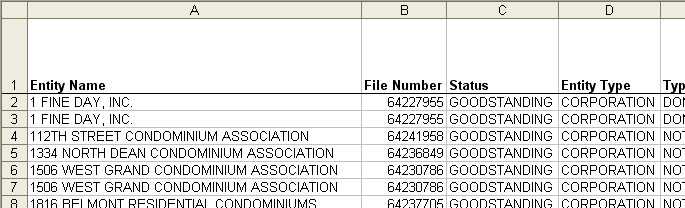
It's obvious that our sample file has duplicate records. There's many ways to get rid of them or highlight them.
Finding With a Formula
Use this method if you only need to get rid of duplicates once in a while.
-
We insert a new Column A by clicking on A and hitting Insert Column.
-
We give the row a heading. If we don't, and we sort the data, we might discombobulate it!
-
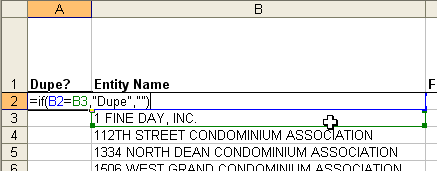
We type a formula into A2 that will find duplicates for us. This formula only looks for duplicate values in Column B.
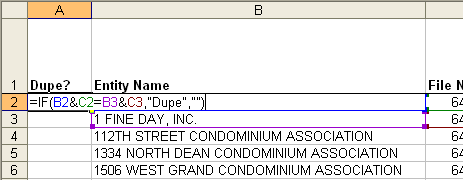
If you need to look for duplicates in more than one column, you can use a formula like this one instead.
-
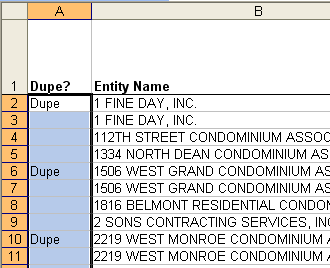
We then copy the formula by double-clicking the fill handle. With the data still selected as a result of copying the formula, we then copy the cells (Ctrl+C or Edit Copy), and then we choose Edit Paste Special, Values, OK. We do this to remove the underlying formula.
-
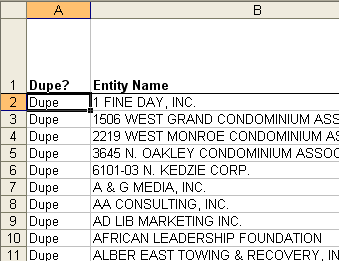
We now sort descending by Column A to bring all the Dupes to the top.
-
Select all the rows that have "Dupe" in Column A, and delete them.
-
Delete Column A.
Finding With Conditional Formatting
Perhaps you only want to find the duplicate values so you can deal with each manually. For this you can use Conditional formatting. Just select the cells you want highlighted if there are duplicates. From the menu, choose Format Conditional formatting. Choose the options as shown below, and type the formula in as shown, being sure to include the entire range of your cells.

Finding or Highlighting Using VBA
If you need to deal with duplicates often, you'll want to use VBA.
-
This entry deletes duplicates in a specified range. http://www.vbaexpress.com/kb/getarticle.php?kb_id=135
-
Chip Pearson provides many ways to deal with duplicates. http://www.cpearson.com/excel/duplicat.htm